How to create and send self-destructing emails on Gmail?

Want to send an email that deletes automatically from the recipient’s inbox? Use Gmail’s automatically self-destructing emails. Confidential Mode in Gmail allows you to set an expiration for the emails. The feature is available on both, Gmail website (mail.google.com) as well as on Gmail mobile app. That means like other settings you don’t need to open your Gmail account in a browser to send self-destructing emails. Along with sending self-destructing emails, Confidential Mode also makes your email unable to forward, download, copy-paste, and as well as print. However, the receiver can still capture a screenshot or photo of your message.

 How to create and send self-destructing email from Gmail website (mail.google.com)

1.   Start Google Chrome or your preferred browser.

2.   Search for Gmail or directly go to ‘mail.google.com’ to open Gmail. In Chrome, you can also click the Google apps (grid) icon near the upper side of any new tab and select ‘Gmail.’

3.   Sign in to Gmail, if you aren’t already.

4.   After that, click on ‘Compose’ button in the left column to create a new message.

5.   When the new message window opens, click on the ‘Lock and clock’ button at the bottom. Doing so enables the confidential mode and opens the Confidential mode dialog box on the screen.

6.   Click the SET EXPIRY dropdown button and choose when you want the message to expire.

7.   After that, tweak other settings for the message and click on the ‘Save’ button.

8.   Now, compose your email as you usually do.

In case, you change your mind and want to send the standard message, then click the ‘Lock and clock’ button again to turn off confidential mode. Or, click the ‘X’ icon in the box appearing under the message body. If you want to change the expiration date or other settings, click ‘Edit.’

9.   When you’re done, click ‘Send.’

Your email will be sent to the receiver and delete itself automatically on the expiration date you’ve chosen for it. The timer starts immediately, as you hit the ‘Send’ button, either the recipient opens your message or not, it will delete when the time ends.

 How to create and send self-destructing email from Gmail app

These steps apply to Android but will be very similar in iOS. If you want to send a confidential message with your mobile, then here is how.

1.   Start ‘Gmail app’ in your device.

2.   Sign in to Gmail, if you aren’t already.

3.   Your Gmail inbox is displaying on your phone screen, click on the ‘+’ button near the lower right side of the display to compose a new message.

4.   In the message composing screen, click on the ‘More’ option button and select ‘Confidential mode.’

5.   Confidential mode settings will now open your screen, make sure the feature is enabled.

6.    After that, open the Set expiration dropdown to choose the expiration date for your message.

7.   Tweak other settings for the message and click on the ‘Save’ button at the top.

8.   Now, compose your email as you usually do.

9.   And click ‘Send.’

You’ve successfully created and sent a self-destructing email through Gmail.

Anna Mathew, writer of this blog loves to write and create awareness related to day-to-day internet threats. Major topics of her interest are Printer support like Lexmark Printer Support, Canon Printer Support, HP Printer Support etc.
How to fix common errors in Google Chrome?

Chrome is amongst the most popular browsers. Made by the tech giant Google, this browser has amazing UI, simplistic design, and offers several extensions. However, sometimes, you may face certain problems. In this blog, we will be discussing some of the most common problems faced by Google Chrome users and the ways to fix them.

Common Fixes

If you are facing common Google Chrome errors, then you can apply some basic fixes. You need to follow the steps given below.

  • First, you have to reboot your computer to make Google Chrome run faster.
  • If your page does not load properly or the router is not working correctly, then you have to check your internet connection.
  • After that, you should ensure that your system supports Google Chrome.
  • If you download a lot of stuff online, then you should check your computer, it may have a virus.

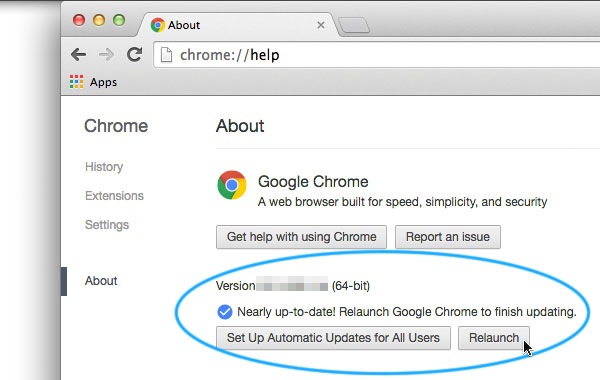
Update Chrome

You can update your Google Chrome. Here are the instructions to do so.

  • Firstly, you have to launch Google Chrome on your device.
  • After that, you should click on the vertical ellipsis menu icon.
  • Then you have to choose “Help” from the drop-down menu.
  • Thereafter, you should click on “About Google Chrome.”
  • When the updates are available click on Update.
  • After installing, when the prompt comes, click on “Restart Chrome.”

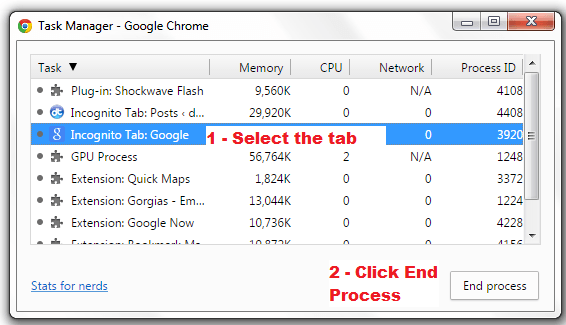
Quit Unresponsive Tabs

If you are facing common Google Chrome errors, then you can just quit unresponsive tabs. You need to follow the steps given below.

  • Firstly, you have to launch Google Chrome on your device.
  • After that, you should click on the vertical ellipsis menu icon.
  • Then you have to choose “More Tools” from the drop-down menu.
  • Thereafter, you should click on “Task Manager” from the pop-up menu.
  • Later, choose tabs that you want to close.
  • Now, you have to click on “End Process.”

Disable Extensions

You can disable extensions on Google Chrome. Here are the instructions given below.

  • Firstly, you have to open Google Chrome on your device.
  • After that, you should click on the vertical ellipsis menu icon.
  • Then you should choose “More tools” from the drop-down menu.
  • Thereafter, you have to click on “Extensions” from the pop-out menu.
  • Later, you should locate the extension to disable it.
  • Now, you have to untick the box of “Enabled” near the extension.

Delete Cookies and History

If you are facing common Google Chrome errors, then you can delete cookies and history. You need to follow the steps given below.

  • Firstly, you have to open Google Chrome on your device.
  • After that, you should click on the vertical ellipsis menu icon.
  • Then you have to click on “Settings” from the drop-down menu.
  • Thereafter, you should move down and click on the “Advanced” option.
  • Later, you have to click on “Clear browsing data” in “Privacy and security” options.
  • Now, you have to ensure that all boxes are ticked in the window.
  • After that, click on the box of “Clear the following items from.”
  • Then, you should click on “the beginning of time.”
  • Thereafter, you have to click on “CLEAR BROWSING DATA.”

Reset Google Chrome

You need to reset Google Chrome. Here are the instructions given below.

  • Firstly, you have to open Google Chrome on your device.
  • After that, you should click on the vertical ellipsis menu icon.
  • Then you have to click on Settings from the drop-down menu.
  • Thereafter, you should move down and click on “Advanced.”
  • Later, you have to go down and click on “Reset.”
  • Now, when the prompt comes, click on “RESET.”

Anna Mathew, writer of this blog loves to write and create awareness related to day-to-day internet threats. Major topics of her interest are Printer support like HP Printer Support, Brother Printer Support, Dell Printer Support etc.

Unable to play Spotify on your TV? Here is how to troubleshoot

Spotify is now accessible on almost all platforms, and you can play it anywhere when you want. Spotify can be used on smart speakers, smart displays, game consoles, audio streamers, smartwatches, Smart TVs, car’s music player, and even with applications like Google Maps. If you’re a real music lover and likes to listen to music, then maybe you’re using it on all your devices also on your TV. If you want to play Spotify on your TV or facing any issues in playing it here, you’ll know how you can play Spotify on your TV and troubleshoot the problems.

How to troubleshoot the issues with Spotify TV app

If you’re using Spotify TV app to play music through Spotify on your TV, but the app is not working. Check the following things.

Note: Check the “Spotify Connect” section below if you’re using Spotify on your TV with a mobile or tablet.

•    Confirm that your TV is connected to an internet connection.

•    Internet connection should be strong with a good speed. You can test it by playing the programs you use daily with it.

•    Make sure the Spotify TV app you’re using is up to date. To enjoy a hassle-free experience, update your TV app to the latest version. Visit your TV app store to check and update the app.

•    Moreover, Television’s software is also up to date. If you don’t know how to check and update it, check your manufacturer’s site.

•    Still Spotify does not work. Check whether your TV support Spotify. You can visit the link given “https://spotify-everywhere.com/pages/product-categories” to check the products that support Spotify.

If the issue persists, then try doing this also:

•    Power your TV off and then power it on again.

•    Try rebooting your Wi-Fi.

•    Try playing Spotify with a different Wi-Fi connection.

•    Remove the Spotify app and then reinstall it.

How to troubleshoot the issues with Spotify Connect

•    First of all, check whether your TV support Spotify. You can visit the link given “https://spotify-everywhere.com/pages/product-categories” to check the products that support Spotify.

•    If you’re trying to play Spotify on your TV with your mobile device for the first time, then ensure that both TV and mobile or tablet are using the same Wi-Fi Connection. If your device is connected to a different network or using mobile data instead of Wi-Fi, then it will not work.

•    Make sure the Spotify TV app you’re using is up to date. Visit the app store of your device and install the most recent version of Spotify.

•    With a massive collection of music, Spotify also allows its users to play the audio stored in their devices (called local files). But you can’t play this music with Spotify Connect to your TV. So, make sure you’re not playing local files.

•    Moreover, update the software of your devices.

If the issue persists, then try doing this also:

•    Close your Spotify app completely and then restart it.

•    Close all other unnecessary programs.

•    Restart Wi-Fi or reconnect the Wi-Fi connection.

•    Restart your mobile or tablet, it this doesn’t work restart both TV and mobile.

•    Try connecting the devices with a different Wi-Fi network, if possible.

These troubleshooting tips surely troubleshoot the issues, and you’ll be able to play Spotify on your TV. If you’re facing problems with “Apple AirPlay” or “Google Chromecast” to play music on Spotify on a TV, then you can also use these solutions, this will surely help.

Anna Mathew, writer of this blog loves to write and create awareness related to day-to-day internet threats. Major topics of her interest are Printer support like Brother Printer Support, HP Printer Support, Epson Printer Support, Lexmark Printer Support, Canon Printer Support etc.